
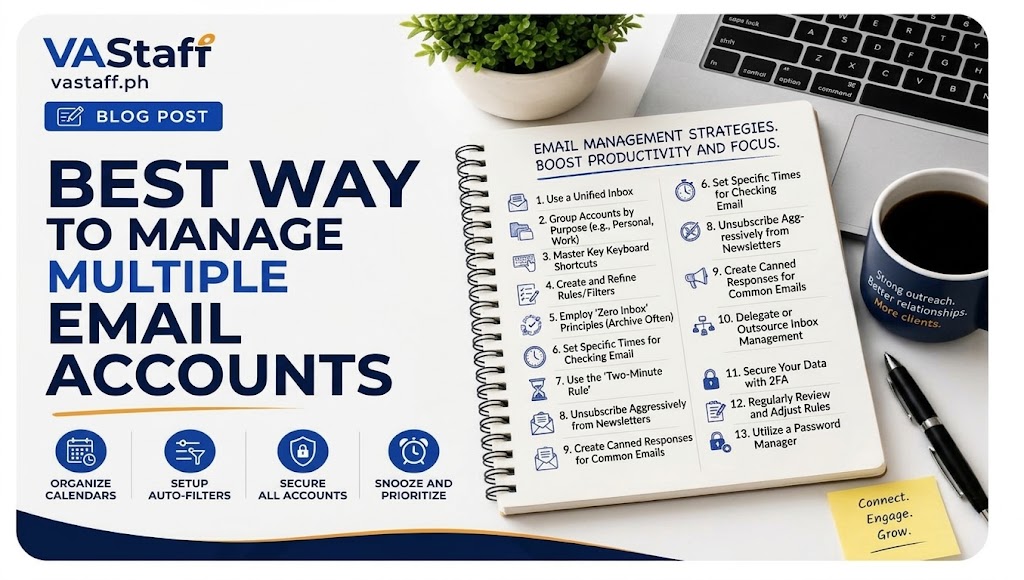
Managing multiple email accounts is quickly becoming one of the biggest everyday headaches for today’s professionals. Whether you’re balancing a day job, juggling freelance clients, running a small business, or just trying to keep your personal life separate from work, email overflow is real. It typically starts with 2 accounts and before you know it you’re checking 5 different inboxes throughout the day just to make sure nothing slips through the cracks.
But the physical and mental cost of this constant switching is greater than most people realize. Cluttered inbox = buried messages, forgotten follow ups and late responses to critical clients. Plus, all that constant context-switching—logging into one portal, logging out, opening three new browser tabs, checking notifications on your phone—takes a toll on your focus. Every time you switch accounts you’re expending energy trying to remember where you left off and feeling burned out before lunch even rolls around.
The way to break this stressful cycle is through strategic inbox management. Instead of your accounts running your day, having a clear system set up allows you to get back in control, streamline your communications and reduce overwhelm dramatically on a day to day basis. When you think of your email as a structured workflow and not a chaotic free-for-all, you’ll spend far less time sifting through digital noise and far more time doing actual work.
Stop doing it all. Delegate more.
Hire a vetted virtual assistant and get your week back — starting with a free discovery call.
In this guide, VA Staff will share practical strategies, tools and real-world best practices that will help you seamlessly organize and manage multiple email accounts in one central place.
Best Practices for Managing Multiple Email Accounts
1. Consolidate inboxes An email client
One of the fastest ways to regain your sanity across all your accounts is to not look at each inbox in a separate browser tab. Instead, download a dedicated desktop or mobile email client like Microsoft Outlook, Apple Mail or Mozilla Thunderbird. These apps are intended to bring all of your messaging together into one, unified dashboard.
Unified Inbox View: All incoming messages are in one continuous stream, so you don’t have to jump between five different browser tabs or log in and out of different web portals.
Custom Notification Controls Email clients allow you to customize your alerts. Mute low-priority accounts during focus hours but leave alerts for critical client notifications.
Multiple Accounts Signature Easily manage multiple identities You can even save different signatures for each account, so you’re always signing with the right contact info and company branding.
An email client will help keep your desktop clean, and you’ll never miss a message because you forgot to check a secondary tab.
2. Configure E-Mail Forwarding to a Central Account
If you’d rather work out of webmail instead of downloading software, email forwarding consolidation is an amazing alternative. You just pick one primary address, usually your main work or personal email address and set up your secondary accounts to forward all incoming mail straight to that primary inbox.
You will need to set up the “Send Mail As” feature inside your primary email provider to get this to work seamlessly without confusing your contacts. This allows you to send a new email or reply to messages sent to your secondary addresses or aliases directly from your master dashboard. The recipient of your message will see your alias in the “From” line, completely unaware that you sent it from your central account.
Always think about security when you set up forwarding rules. Even if you don’t log in to the real web interfaces much, have secure passwords and active recovery options for your original accounts.
3. Switching Webmail Accounts and Profiles
For heavy users of webmail and services like Google Workspace, the neatest way to manage multiple accounts without mixing up your data is usually to create different browser profiles.
Instead of staying signed into multiple Google or Outlook accounts within the same browser window, create separate user profiles in your browser (e.g. Google Chrome, Brave, Microsoft Edge). You can easily identify these profiles according to your different roles:
Life Personal
Main Work
Freelance / Client B
Side Gig
The primary benefit of isolated browser profiles is boundary separation. Each profile has its own separate cookies, stored passwords, extensions and open web pages. You never have to worry about accidentally saving a personal bookmark to a work account or auto-filling wrong credentials into a form. To change between your different email identities, simply click on a profile icon in the top corner of your screen.
4. Group Accounts with Folders, Labels & Categories
When your emails are in one central place, visual organization is your best friend. A consolidated inbox can quickly look like a mess of random messages without clear visual separation.
Most modern email platforms let you create custom folders, labels or color codes for incoming messages. Your system should automatically tag it visually on receipt, clearly indicating which account it was received on. You can expand categories using a few common structures:
Group by Department Sales Support Billing Internal Ops
Sort by Client or Project Client Alpha. Website Redesign Marketing Campaign.
Sort by Action Level Needs Action, Waiting for Reply, Reference Only.
The only way to get long-term success here is to have a standardized labeling system across all of the accounts that you manage. If you use green labels for “Action Required” on your work account, use the exact same green label for your freelance inbox. And consistent visual cues help your brain process incoming work instantly, without friction.
5. Use Rules and Filters to Automate Inbox Organization
You will get burned out fast if you have to manually move each and every message to it’s folder. Rather, set up automated rules and filters and let your email provider do the heavy lifting.
First, find the repetitive, low-priority emails that keep slipping into your inboxes. This includes such items as receipts for software subscriptions, automatic system alerts, weekly newsletters, and social media notifications. You can create simple rules that trigger immediately when an email hits your server:
Automatically sort and store receipts in a “Finance” folder so you’re prepared for tax time without cluttering up your main view.
Send all newsletters to a “To Read” folder so you can read them during downtime.
Auto-mark updates on notifications as read and sweep them into project logs.
By delegating this mundane sorting to automated rules, your primary inbox remains a place for genuine, high-priority communication from real human beings.
6. Setup Unified Folders & Master Tags
Stick to a simple folder structure that works in every email account you manage to keep your digital archive clean over the long term. Don’t create complicated, endless subfolders that take five clicks to file one message. Use a simple set of master folders instead.
Here’s what a good core folder setup looks like:
Action Required: For messages that require thoughtful response, task creation, or follow-up action.
Waiting on Response: For emails where you need someone else to respond before you can proceed.
Archive The primary storage bucket for finished conversations you may need to search for later.
If everyone has the same three-folder baseline, filing messages becomes second nature. You will not have to stop and think about where to put a thread for a client.
Plan to do a quick monthly audit to sweep through your folders, clear out resolved items, and archive stale threads. A lean folder system for quick and accurate search functions.
7. Use a virtual assistant to handle your inbox
If you have so much email that it takes hours out of your workday to sort and organize it, it might be time to hand off the burden altogether. One of the best ways for business owners and executives to get their schedules back is by outsourcing inbox management to a virtual assistant (VA).
A trained virtual assistant can handle daily inbox maintenance for all your accounts. They are able to:
Check incoming messages throughout the day so you don’t have to stay glued to your screen.
Bring to your notice urgent messages and immediate priorities.
Spam, promotional noise and low-priority requests are filtered out.
Sort incoming mail into designated folders and label accordingly.
Develop draft routine responses for your approval or send standard responses directly to clients.
To make delegation work well, you’ll want to define a basic standard operating procedure (SOP) that includes your preferred style of response, rules of engagement, and escalation guidelines for high-stakes messages.
At VA Staff we pair businesses with trained administrative virtual assistants who handle routine inbox monitoring, filter priorities and protect your focused time. That kind of administrative heavy lifting can be passed off so you can grow your business and keep your inboxes pristine.
8. Set Times to Check Mail
Checking your email every time you get a notification is a huge productivity killer. Constant alerts distract you from deep, meaningful work. Your brain has to restart its focus cycle again and again.
Instead of working in reactive mode all day, move to batch processing. Disable real-time push notifications on your desktop and phone, and choose scheduled email windows in your daily routine instead. You could reserve three 30-minute blocks:
Morning (9:00 AM): Do a brief check for any client issues or updates that may impact your day plan.
1 PM – Clear quick replies. Process incoming requests. Sort messages in file by topic.
Late Afternoon (4:30p.m.) Tidy up, do your last follow-ups, and clear out your working folders for the day.
Make batch processing stick by setting realistic expectations with your clients and your team. Add a note in your auto responder or email signature letting people know when you check email during the day. Provide an alternative channel (phone number or internal messaging app) for urgent contacts in case of real emergencies.
9. Standardize e-mail signatures and templates
If you have multiple accounts, answering similar questions in different inboxes with the same answers takes up a massive chunk of time. Templates and saved signatures for standardized communication solve this instantly.
First, build clean and professional email signatures for each individual account/persona. Make sure you add your proper title, branding, business phone number and relevant links to each signature so you don’t mistakenly send a personal sign-off from a professional address.
Then, build a library of templates for your most common questions. Save canned responses for:
Service questions Pricing inquiries.
Meetings and Calendar Links
Typical project or product questions.
Steps for new customers onboarding.
Canned responses and email templates cut response time to seconds. Just load the template, make a few quick personalizations and hit send, maintaining your brand voice consistent in every inbox you control.
10. Implement security and control of access.
Managing multiple accounts is managing multiple entry points into your digital life. If one account is hacked, your other accounts, client data and personal information could be at serious risk. We will not budge on strong security controls.
Start by activating Multi-Factor Authentication (MFA) or Two Factor Authentication (2FA) on all your email accounts. You can also use authenticator apps or hardware security keys for strong protection against unauthorised logins.”
Use Password Managers Never use the same password on multiple accounts. Use a password manager to generate and store strong, unique passwords and auto-fill for every inbox.
Never Share Raw Credentials Don’t send raw passwords over text or email when giving team members or VAs access to an inbox.
Use Native Delegation Features: Many platforms like Google Workspace and Microsoft Outlook offer built-in delegation tools. You can turn these on so that members of your team can watch and send mail for you without ever sharing your main account password.
Tight security protects your accounts and lets you collaborate smoothly and securely with assistants and teammates.
11. Unsubscribe aggressively & audit subscriptions
Sign up with multiple email addresses and the promotional noise, brand updates and unwanted newsletters multiply exponentially. It doesn’t take long before half of what comes across your desk each day is marketing stuff you never intended to read.
Audit your subscriptions aggressively once a week. If you get promotional messages, scroll down to the bottom and click the ‘Unsubscribe’ button immediately instead of just deleting the message. Over time, by cleaning up your lists at the source, you will keep thousands of junk e-mails out of your inbox.
If you need an email address for public signups, lead magnets, or software trials, consider creating a separate “junk” or secondary public account. Keep your primary work and personal address for important contacts only and keep the promotional noise completely separated.
12. Search Operators Find It Fast
As your message history across multiple accounts grows, searching for an old thread by manually browsing through folders becomes slow and frustrating. Learning basic search syntax across your email tools will save you hours of manual digging.
Most modern email platforms have powerful search operators that filter thousands of messages in seconds:
clientname@company.com — Finds all messages from a given person.
to:billing@mycompany.com – Filters directly for mail sent to your accounting inbox.
has:attachment – Shows only messages that have files or documents attached to them.
subject:”Q3 Report” — Finds messages that have the exact phrase in the subject line.
You can mix and match these operators (e.g., from:john has:attachment subject:invoice) to quickly pinpoint exact files. Many email clients let you save these complicated search queries as dynamic virtual folders, which means you can access active project files with one click, without moving them out of their original archives.
13. Work and Personal Communication Boundaries
When all your communications funnel through a central workflow, the line between professional obligation and personal time can get blurry fast. It’s important to have clear boundaries so you can keep your focus during the work day and not burn out when you sign off.
Set rules for when and how you will engage with each of your accounts. Create strict “Do Not Disturb” schedules or off-hours notification rules for work-related addresses so client emails don’t intrude on your family time or weekends.
Creating real mental separation between your work and personal life clears your head, refreshes your energy, and helps you show up fully focused during work hours.
How to Tell If You Need a Better Email Management System
If you’re not sure whether your current setup needs a revamp, take a moment to evaluate your daily routine. If you are like me, then you may need a better system if:
- You’re frequently missing important client emails or responding too slowly because messages get lost in the noise of lower priority messages.
- Every single day you spend more than an hour manually going in and out of various email portals.
- Your browser is often filled with dozens of tabs just to monitor various email inboxes.
- You feel constant anxiety or overwhelming seeing unread notification badges piling up on several accounts.
- Important files, receipts and attachments are often lost in multiple account drives and messy inboxes.
- The first step to regaining control of your communication channels is to identify these red flags.
How to Start to Streamline Your Email Accounts
You don’t have to be overnight to turn a chaotic email system into a well-oiled machine. Taking things a step at a time, you can make steady progress:
- Inventory Your Accounts List all of your active email accounts that you currently own and what they are used for (i.e. Main Work, Freelance, Personal, Shopping).
- Audit Incoming Volume. Identify the volume and type of incoming mail each account receives during a typical week to identify where heavy clutter occurs.
- Choose your centralisation strategy Use one email client, centralised forwarding or dedicated browser profiles – whatever suits you.
- Link your accounts Step 3: Configure your main email client, app, and your other email addresses.
- Standardise labels and rules Create a consistent set of labels, parent folders and auto filters for all your linked accounts.
- Delegation SOP Samples: If you want to delegate inbox management to a VA create basic guidelines and standard operating procedures.
- Create daily time slots to process emails and turn off real-time push notifications to maintain your focus. Set Batch Windows
- Changing one thing at a time will quickly turn your email system from a constant distraction to a streamlined asset.
Conclusion
Manage multiple email accounts without distractions and missed messages. Automated filters, standardised folder structures, delegation support and a central system can all help turn messy inboxes into well-organized communication hubs. The key to long-term success is to create a repeatable workflow that minimises the need to do things manually and keeps you focused on high-value work.
Frequently Asked Questions
What’s the best tool for managing multiple email accounts in one place?
The best tool is dependent on how you like to work. Desktop email clients like Microsoft Outlook, Apple Mail and Mozilla Thunderbird are good for blending multiple accounts into a single desktop interface. If you prefer working in a web browser, platforms like Shift or Google Chrome’s dedicated browser profiles let you switch between webmail accounts without having to log in and log out.
Is it safe to forward all my email accounts to one main inbox?
Yes, secondary accounts may be forwarded to a central master inbox, provided the master account is secured. Enable Two-Factor Authentication (2FA) on your primary and secondary accounts, use strong passwords and triple check your “Send Mail As” alias settings so you never accidentally leak secondary account details.
How can a Virtual Assistant assist me in securely managing multiple inboxes?
Your Virtual Assistant can watch your accounts, organize your messages, weed out spam, highlight urgent priorities, and write standard replies according to your specifications. To keep your accounts safe, use the official delegation features of Google Workspace or Microsoft Outlook to grant access, or use password managers so you don’t have to share raw login credentials.
How do I prevent replying from the wrong email address in a unified client?
Most unified email clients will automatically default to replying from the exact email address the original message was received on. To prevent mistakes when composing new emails, however, always check the “From” drop-down menu before you send, and set default sending addresses for particular account profiles in your client settings.
How many email accounts should an individual or a business ideally have?
In an ideal world, a person should limit themselves to 2 to 4 active email accounts (e.g. one personal, one primary work, and one secondary for business/sign-ups). More than that just adds more operational friction making accounts much more difficult to integrate, troubleshoot, and maintain.
What's your business?
Company name and what you do — a line is plenty.
How many VAs do you need?
A rough number is fine — you can scale later.
What do you need help with?
Pick a category — you'll choose specific roles next.
Which roles do you need?
Pick any that apply — or add your own below.
How many hours per month?
Full-time or part-time — pick what fits.
Where do we send your matches?
We'll email you a shortlist of VA candidates.
You're all set!
We'll review your answers and send a list of matched VA candidates to your inbox — usually within one business day.
Or book a free call now →